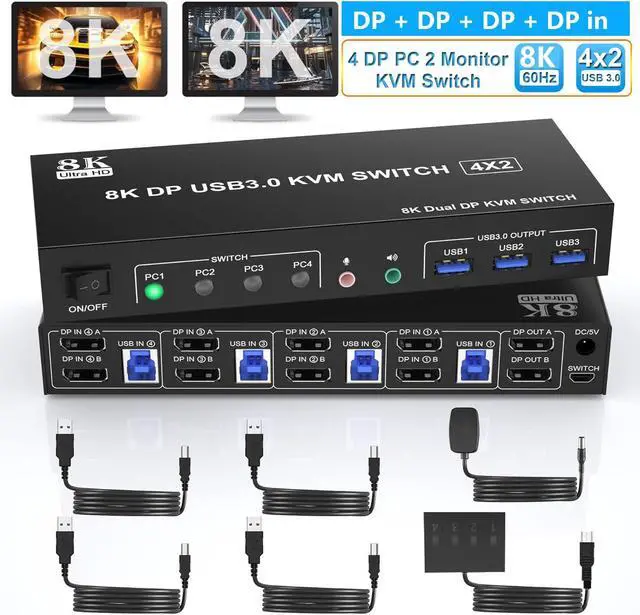

Hitoor 8K 60Hz Displayport USB 3.0 KVM Switchfor 4 Computers 2 Monitors 4K 144Hz DP1.4 Dual Monitor Displayport KVM Switch 4 Port With Audio Output And 3 USB 3.0 8K DP Monitor Switch For 4 PCs
Free worldwide shipping, tax free!
$94.00
$229.00
Main Features & Information
Hitoor 8K 60Hz Displayport USB 3.0 KVM Switchfor 4 Computers 2 Monitors 4K 144Hz DP1.4 Dual Monitor Displayport KVM Switch 4 Port With Audio Output And 3 USB 3.0 8K DP Monitor Switch For 4 PCs
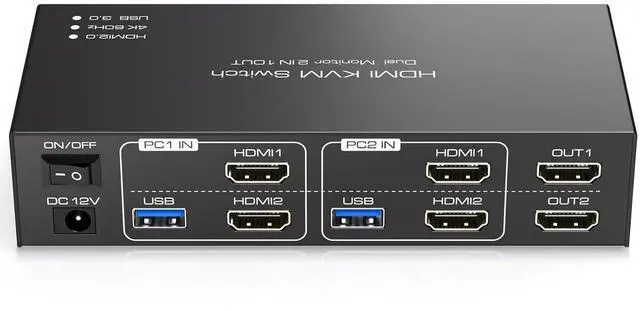
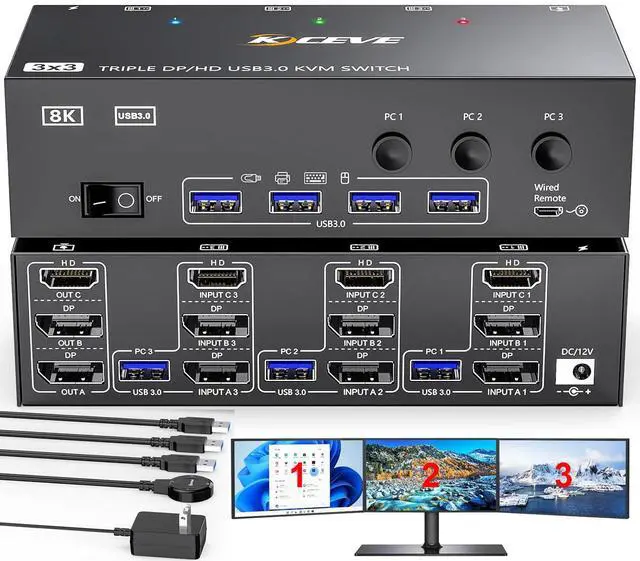
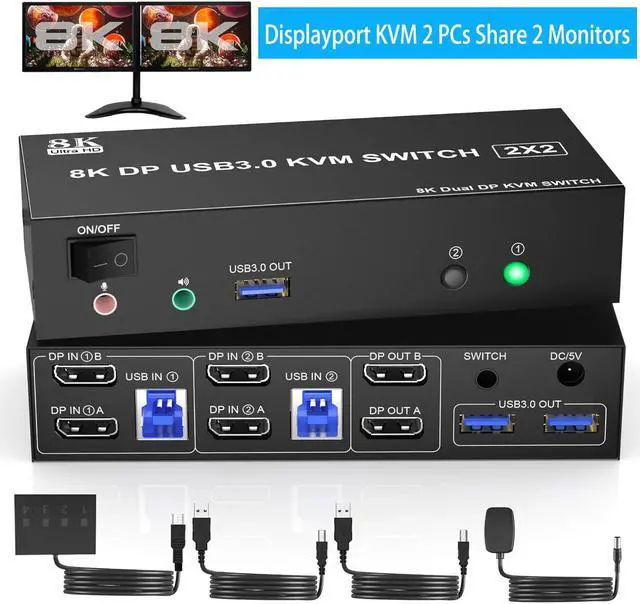
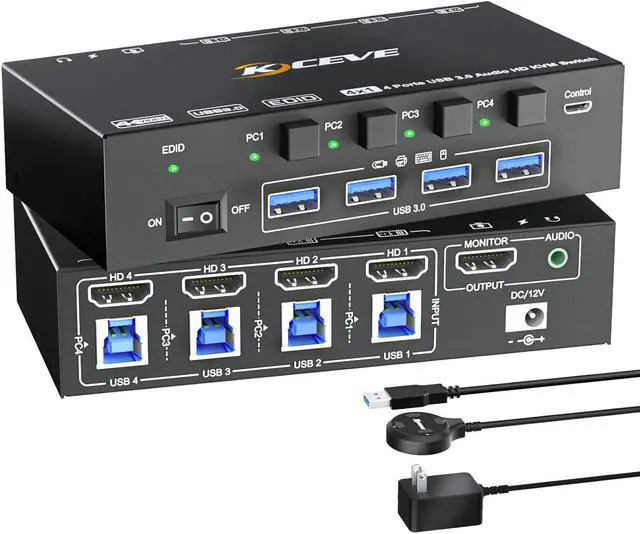
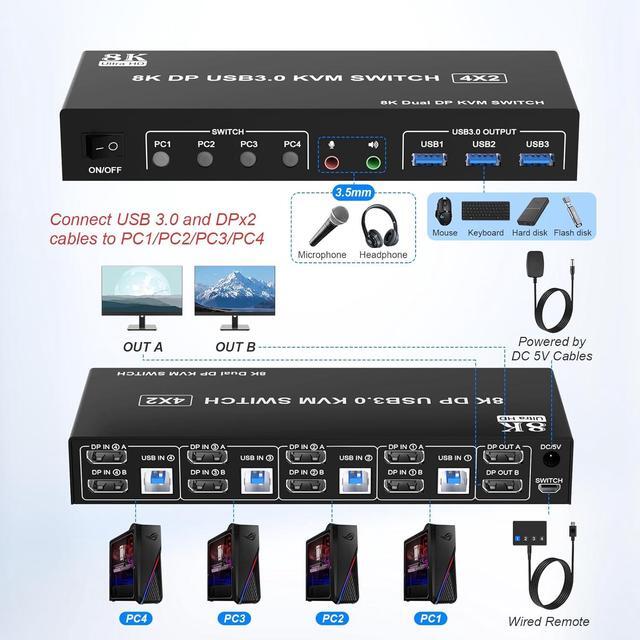
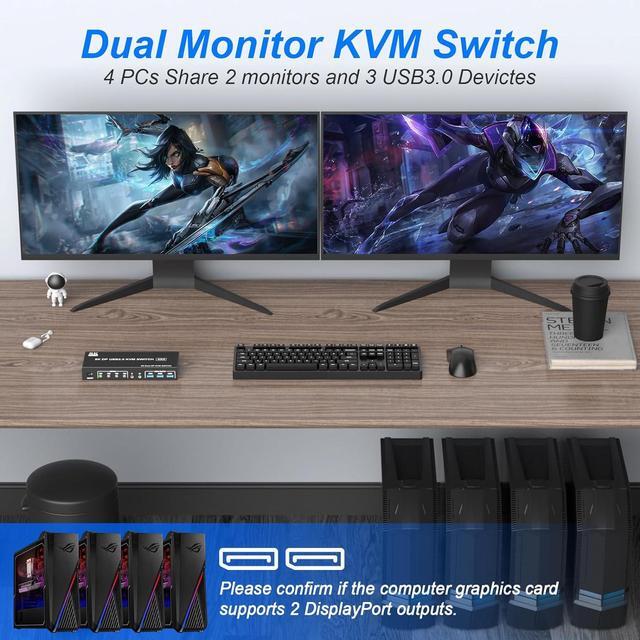
- [4 Port DP Dual Monitor] This KVM Switch allow 4 desktops or laptops to share one set of keyboard, mouse and 2 monitors for extended, mirrored display. Only when your computer supports dual display or multi display, you can use this KVM to achieve 4 PC to share 2 monitors.
- [Ultra HD 8K@60Hz] Supports resolutions and refresh rates up to 8K@60Hz 4K@144Hz, and also supports 4K@60Hz or other lower resolution.
- [with USB 3.0 Ports] with 3 USB 3.0 ports which can recognize keyboard,mouse,printer and other USB devices. The transmission speed of USB3.0 up to 5Gbps, while USB 2.0 only 480Mbps.
- [Great Compatibility&2 Switching Modes] Driver-free for Windows, Linux, Mac, Unix, Ubuntu, Raspberry etc. You can press the button on the panel or use the wired remote controller to switch the computers.
- [Important]After connecting the computers and the monitors through KVM, you need to set the screen output mode on the computer (Windows+P) and select the output mode in the pop-up window on the screen.